
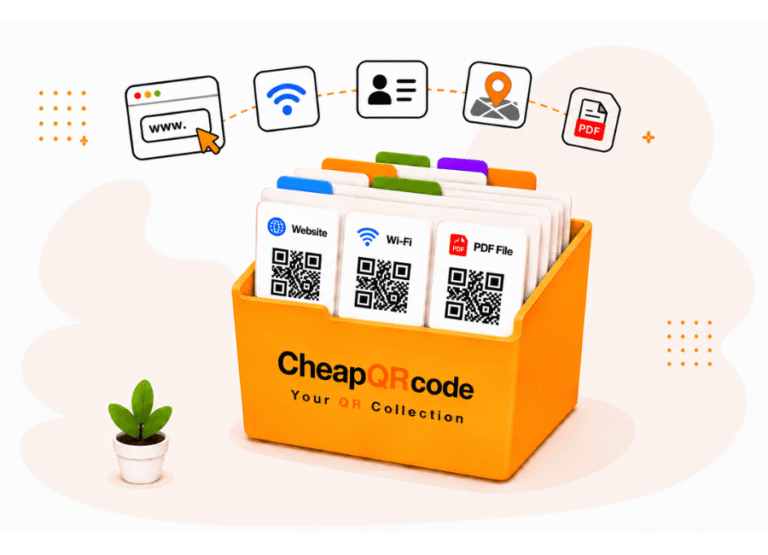
QR Code Generator
Create, customize, organize, download, print, and manage your QR Codes — all in one place.
Create Static or Dynamic QR Codes for websites, files, Wi-Fi, contacts, locations, messages, and more. Organize them into Projects, customize their design, connect Google Drive when needed, and keep your QR Codes available in your collection.
Create a QR Code:
Start with the QR Code that fits your needs
CheapQRcode lets you create both Static and Dynamic QR Codes. Choose a Static QR Code when the information encoded in the QR Code will not need to change and a Dynamic QR Code when you want the flexibility to update where your QR Code leads later, without having to replace the printed QR Code. Dynamic QR Codes also include scan statistics.
Not sure which one to choose?
You can share the QR Code once and people can continue using that same code forever.
You can update the content behind the QR Code (website URL, map location, contact information, files, calendar event, and more) at any time without creating, printing, or distributing a new QR Code.
With Dynamic QR Codes on CheapQRcode, you can track every scan in real time. See when, where, and how people are scanning your codes — including location, device type, and time of scan. Use this data to measure results and make smarter decisions for your campaigns
The content will always remain the same.
If the information changes, you must start over and create, print, and distribute a completely new QR Code again.
A Dynamic QR Code example:
Imagine you give a customer a QR Code today. The customer saves it on their phone or keeps it printed on a brochure. A week, a month, or even a year later, they can continue scanning that same QR Code.
Meanwhile, you may have updated the information behind it, such as product information, prices, documents, forms, promotions, or other content.
The customer keeps using the same QR Code, while you control what it displays.
Because it is a Dynamic QR Code, you can also view scan statistics, including how many times the QR Code has been scanned and when those scans occurred.
Quick Comparation:
| Feature |
|
|
|---|---|---|
| Content can be updated | No | Yes |
| Same QR can be reused | No | Yes |
| Requires reprinting after changes | Yes | No |
| Best for information that never changes | Yes | Sometimes |
| Report:Track QR code scans in real-time with analytics. | No | Yes |
Keep your QR Codes organized from the beginning
Before creating your QR Code, you can add it to a Project.
Projects are an easy way to group related QR Codes — for example, by business, client, property, restaurant, event, campaign, or location. You can see how many Static and Dynamic QR Codes are in each Project and create new QR Codes directly inside it.
Don’t need a Project? That’s fine. You can also create QR Codes without assigning them to a Project.
Create the QR Code you need
Select the purpose of your QR Code and enter the corresponding information. You can create QR Codes to:
• Open a website or URL
• Open a file
• Connect to Wi-Fi
• Save a contact
• Show a map location
• Add a calendar event
• Create a message for Email, SMS, or WhatsApp
CheapQRcode guides you through the information needed for the QR Code type you select. Click here to learn more
Make it easy to find later
Give each QR Code a name that makes sense to you.The name is for your own organization and makes it easier to identify, search, and manage your QR Code later in your collection.For example:
Restaurant Menu
Hotel Guest Wi-Fi
Beach House Location
Summer Promotion
Bring Google Drive into your QR Code workflow
Google Drive integration is optional.
When working with Projects, you can connect CheapQRcode to Google Drive so your QR Codes can also be organized according to their Project.
When creating a File QR Code, you can choose a file from Google Drive directly from the QR Code creation process.
This gives you another convenient way to access and work with your QR code files outside CheapQRcode.
Make your QR Code look the way you want
Once your QR Code is created, you can customize its appearance before downloading it. Choose your:
• QR Code color
• Download size
• PNG or SVG format
• Middle icon
You can select an icon from the icon library to help visually identify the purpose of your QR Code.
And choose from different sizes depending on how you plan to use it — from digital content and websites to signs and printed materials. And because you can preview your QR Code as you customize it, you can see the result before downloading or printing.
If you need it again later, you don’t have to recreate it. Your QR Code remains in your CheapQRcode collection.
Go beyond downloading a QR Code
When your QR Code is ready, download it as a PNG or SVG. Choose from different sizes depending on how you plan to use it — from digital content and websites to signs and printed materials.
CheapQRcode also includes tools for creating a complete printable layout around your QR Code: Add text, import images, choose fonts, adjust text size and alignment, and position the elements on the page. You could create something as simple as Scan Me or build a complete printed piece containing your QR Code, logo, image, instructions, and other information. When you’re finished, print it or export the complete design as a PDF.
As your QR Collection grows, keep it organized
CheapQRcode is more than a QR Code Generator. It is also a place to keep and manage the QR Codes you create.
Your Static and Dynamic QR Codes remain available from My Static QRs and My Dynamic QRs lists. You can search by name, filter by Project, test your QR Codes, return to Design & Print, and manage them whenever you need to.
The All Projects area gives you a central view of your Projects and the QR Codes associated with them. See the number of Static and Dynamic QR Codes in each Project, check recent activity, search your Projects, and create new QR Codes directly inside a Project. Whether you have five QR Codes or hundreds, Projects give your collection structure.
Need more flexibility? Use Dynamic QR Codes
Dynamic QR Codes give you additional control after the QR Code has been created. You can update their destination without changing the QR Code itself and view scan statistics to understand how they’re being used.
Your reports can show information such as:
Total Scans · Recent Scans · Last Scan · Top Country · Scan Activity · Country · City · Device Type · Scan Result
This makes Dynamic QR Codes especially useful when the same printed QR Code needs to stay in place while its destination or content may change.
One QR Code Generator. A complete QR Code workflow
Creating the QR Code is just the first step.
With CheapQRcode, you can create, organize, customize, download, print, store, find, update, and track your QR Codes from one platform.
Start with a single QR Code. Organize it into a Project if you want. Customize it. Download or print it. Connect Google Drive when useful. And come back to your QR Collection whenever you need it.